


This guide explains how to install PBXware on Ubuntu Server (24.04 LTS). It walks through preparing the system, installing the software, and accessing the web interface.
Warning: This process will erase all data on the target machine.
Requirements
- Server or virtual machine
- Ubuntu Server 24.04 LTS ISO
- USB flash drive (8GB or larger)
- Internet connection
Step 1: Download Ubuntu Server
Download the Ubuntu Server 24.04 LTS ISO and save it to your computer.
Step 2: Create Bootable USB
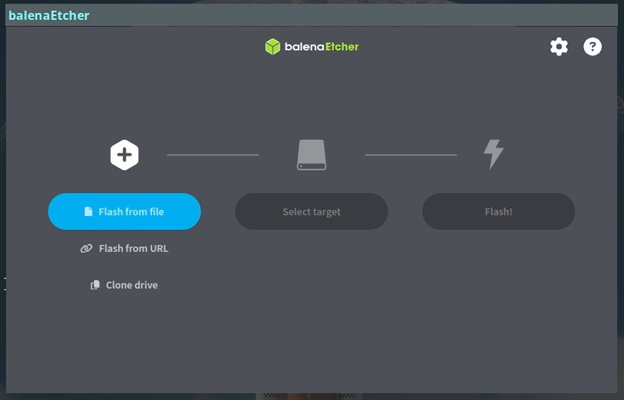
Download Balena Etcher:
- Select the Ubuntu ISO
- Select your USB drive
- Click Flash
Step 3: Install Ubuntu Server
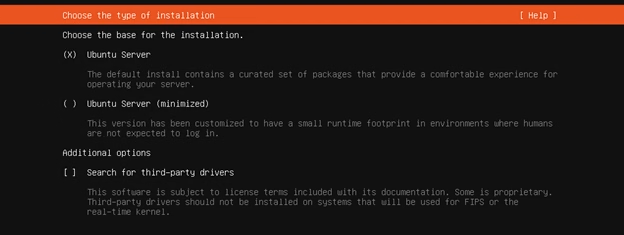
- Boot your server from the USB
- Select Ubuntu Server
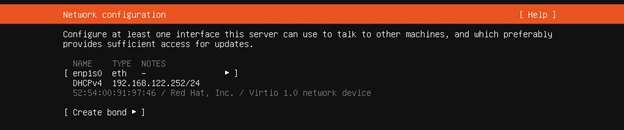
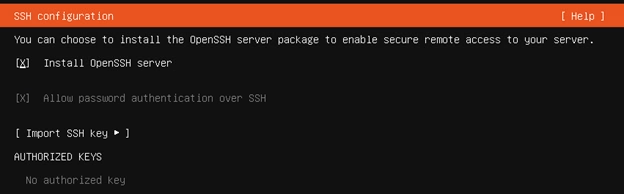
Follow prompts:
- Leave network as default (DHCP) or add your IP address manually
- Select disk (this wipes all data)
- Create username and password
- Enable OpenSSH Server
After installation:
- Reboot system
- Remove USB drive
Step 4: Get Server IP Address
Log in and run:
ip a
Look for the inet IP address.

Step 5: Download PBXware Installer
wget <PBXWARE_DOWNLOAD_LINK>
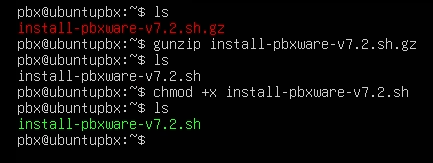
Step 6: Run Installation
gunzip install-pbxware-v7x.sh.gz
chmod +x install-pbxware-v7x.sh
sudo su
./install-pbxware-v7x.sh
Follow the prompts.
Step7: Verify Services
systemctl status pbxware.service
systemctl status setupwizard.service
Both should be running.
Insert Image: Successful service status screen
Step 8: Access Web Interface
Open a browser:
http://YOUR_SERVER_IP:81
Example:
http://192.168.1.100:81
Default Login
Username:
Password:
Service Management
Start/Stop/Restart:
systemctl restart pbxware.service
systemctl restart setupwizard.service
View Logs
sudo journalctl -u pbxware.service -f
sudo journalctl -u setupwizard.service -f
Common Issues
Cannot Access Web Interface
- Verify correct IP address
- Ensure port 81 is open
- Check firewall settings
Installation Script Fails
- Run as root (
sudo su) - Confirm internet access
- Re-download installer
Services Not Running
systemctl restart pbxware.service
Check logs for errors.
Additional Notes
- Use a static IP address
- Open required VoIP ports (SIP/RTP)
- Change default password after login
Last Updated on May 16, 2026