Installing PBXware on Ubuntu
This guide explains how to install PBXware on Ubuntu Server (24.04 LTS). It walks through preparing the system, installing the software, and accessing the web interface.
Warning: This process will erase all data on the target machine.
Requirements
- Server or virtual machine
- Ubuntu Server 24.04 LTS ISO
- USB flash drive (8GB or larger)
- Internet connection
Step 1: Download Ubuntu Server
Download the Ubuntu Server 24.04 LTS ISO and save it to your computer.
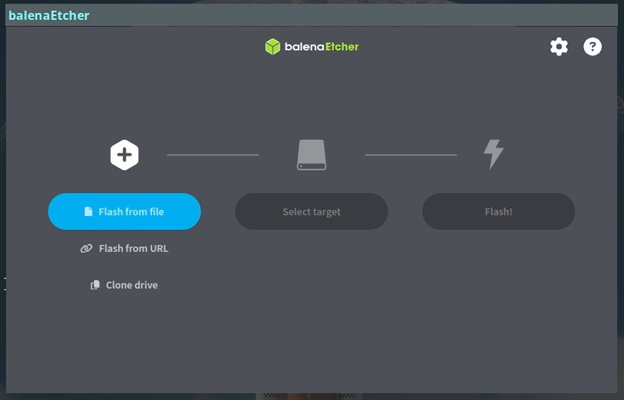
Step 2: Create Bootable USB
Download Balena Etcher:
- Select the Ubuntu ISO
- Select your USB drive
- Click Flash
Step 3: Install Ubuntu Server
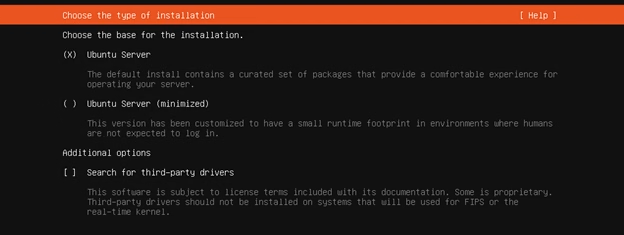
- Boot your server from the USB
- Select Ubuntu Server
Follow prompts:
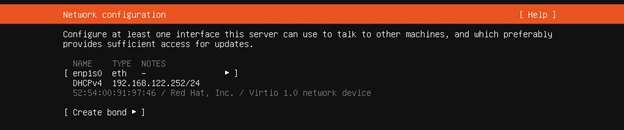
- Leave network as default (DHCP) or add your IP address manually
- Select disk (this wipes all data)
- Create username and password
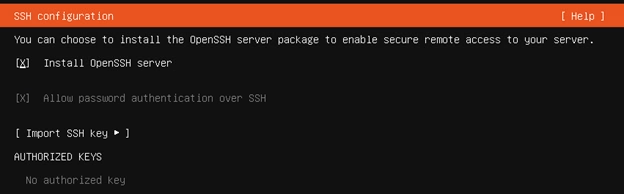
- Enable OpenSSH Server
After installation:
- Reboot system
- Remove USB drive
Step 4: Get Server IP Address
Log in and run:
ip a
Look for the inet IP address.

Step 5: Download PBXware Installer
wget <PBXWARE_DOWNLOAD_LINK>
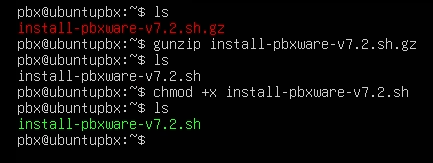
Step 6: Run Installation
gunzip install-pbxware-v7x.sh.gz
chmod +x install-pbxware-v7x.sh
sudo su
./install-pbxware-v7x.sh
Follow the prompts.
Step7: Verify Services
systemctl status pbxware.service
systemctl status setupwizard.service
Both should be running.
Insert Image: Successful service status screen
Step 8: Access Web Interface
Open a browser:
http://YOUR_SERVER_IP:81
Example:
http://192.168.1.100:81
Default Login
Username:
Password:
Service Management
Start/Stop/Restart:
systemctl restart pbxware.service
systemctl restart setupwizard.service
View Logs
sudo journalctl -u pbxware.service -f
sudo journalctl -u setupwizard.service -f
Common Issues
Cannot Access Web Interface
- Verify correct IP address
- Ensure port 81 is open
- Check firewall settings
Installation Script Fails
- Run as root (
sudo su) - Confirm internet access
- Re-download installer
Services Not Running
systemctl restart pbxware.service
Check logs for errors.
Additional Notes
- Use a static IP address
- Open required VoIP ports (SIP/RTP)
- Change default password after login