
Important: Caller ID Compliance
Warning: Caller ID spoofing is the practice of deliberately changing Caller ID information to misrepresent the identity of the caller. Under the Truth in Caller ID Act, transmitting misleading or inaccurate Caller ID information with the intent to defraud, cause harm, or wrongfully obtain anything of value is prohibited.
Only use telephone numbers that belong to your organization or that you are authorized to use. Unauthorized use of telephone numbers may result in regulatory penalties and service restrictions.
If you have questions about Caller ID configuration, please contact us for assistance .
ES Caller ID
The ES Caller ID section allows administrators to control the Caller ID information presented for internal calls, outbound calls, and emergency services. It also provides options for allowing users to select from multiple approved Caller IDs and configure privacy settings on a per-trunk basis.
The settings configured here can override the extension’s default name and number, ensuring that the appropriate business identity is displayed based on the call type or trunk being used.
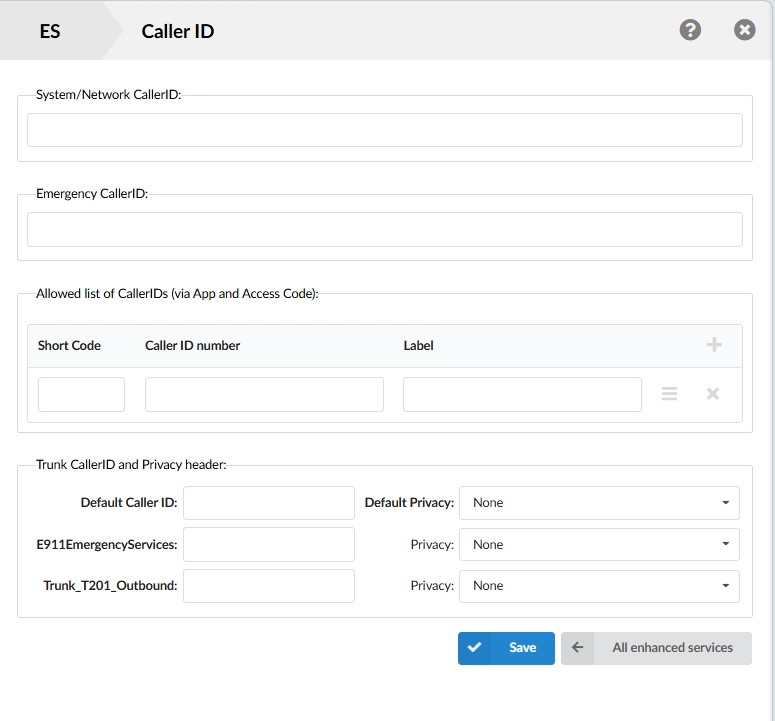
ES Caller ID Configuration Screen
Configuring ES Caller ID
Navigate to:
Extensions → Enhanced Services → Caller ID
The Caller ID window contains four primary configuration areas:
- System/Network Caller ID
- Emergency Caller ID
- Allowed Caller ID List
- Trunk Caller ID and Privacy Header
System/Network Caller ID
Purpose
The System/Network Caller ID controls the caller information displayed when placing calls to other extensions within the PBX system.
Configuration
- Locate the System/Network Caller ID field.
- Enter the desired caller name or identifier.
- Click Save.
Example
If extension 2007 is configured with:
Jake 2007
When calling extension 1005, the recipient sees:
Jake 2007
instead of the extension number or user name.
Common Uses
- Display a department name instead of an extension number.
- Present a user’s full name for internal calls.
- Standardize internal Caller ID formatting.
Emergency Caller ID
Purpose
The Emergency Caller ID field defines the Caller ID presented when emergency services are dialed.
This setting is used exclusively for emergency calls and overrides any standard Caller ID configuration.
Configuration
- Locate the Emergency Caller ID field.
- Enter the Caller ID number required for emergency service routing.
- Click Save.
Example
15555551212
When a user dials an emergency number, emergency responders receive this Caller ID regardless of the extension’s normal outbound Caller ID.
Important
The configured number should be a valid callback number associated with the caller’s physical location and compliant with local emergency service requirements.
Allowed List of Caller IDs
Purpose
The Allowed List of Caller IDs allows administrators to create a list of approved outbound Caller IDs that users can select when placing calls.
Users can choose these Caller IDs in the Communicator application or by using an access code from a desk phone.
Field Definitions
| Field | Description |
|---|---|
| Short Code | Single-digit shortcut assigned to a Caller ID. |
| Caller ID Number | The outbound number that will be presented. |
| Label | Friendly name displayed to users. |
Adding a Caller ID
- Click the + icon.
- Enter a Short Code.
- Enter the Caller ID Number.
- Enter a descriptive Label.
- Click Save.
Example
| Short Code | Caller ID Number | Label |
|---|---|---|
| 1 | 15555551212 | Main Office |
| 2 | 15555554321 | Sales Department |
| 3 | 15555556789 | Support Team |
Using a Configured Caller ID
Communicator Desktop App
- Open Communicator.
- Select the preferred Caller ID.
- Place the call.
Desk Phone Access Code
Format:
*65*CallerID*DestinationNumber
Example:
*65*15555551212*13234456565
Short Code Dialing
Format:
*65
Example:
*65316262834262
Where:
| Value | Description |
|---|---|
| *65 | Caller ID Access Code |
| 3 | Assigned Short Code |
| 16262834262 | Destination Number |
Trunk Caller ID and Privacy Header
The Trunk Caller ID and Privacy Header section allows specific Caller IDs and privacy settings to be assigned to individual trunks.
Default Caller ID
The Default Caller ID is automatically used for outbound calls across all trunks assigned to the extension unless a trunk-specific Caller ID has been configured.
Configuration
- Enter the desired Caller ID in the Default Caller ID field.
- Click Save.
Example
Main Office
Any trunk without its own Caller ID configuration will present:
Main Office
Trunk-Specific Caller ID
Each trunk can be assigned a unique Caller ID. This allows different departments or business functions to present different Caller IDs depending on the outbound route selected.
Configuration
- Locate the desired trunk.
- Enter the Caller ID for that trunk.
- Select any required privacy option.
- Click Save.
Example
| Trunk | Caller ID |
|---|---|
| Trunk_T201_Outbound | Sales Department |
| Default Caller ID | Main Office |
Calls routed through Trunk_T201_Outbound display:
Sales Department
All other trunks display:
Main Office
Privacy Settings
Privacy settings determine how Caller ID information is presented when a call is placed through a trunk.
| Option | Result |
|---|---|
| None | Caller Name and Number displayed normally. |
| Anonymous | Hides Caller Name and Number. |
| Anonymous with Privacy ID | Hides Caller Name and Number and adds a SIP Privacy Header. |
| Anonymous with Number | Displays the number while hiding the name. |
| Anonymous with Number and Privacy ID | Displays the number, hides the name, and adds a SIP Privacy Header. |
Notes
- Privacy settings only apply to calls routed through the configured trunk.
- Carrier support determines whether privacy headers are honored.
- Some providers may replace or ignore privacy information.
Caller ID Priority
When multiple Caller ID settings exist, PBXware uses the following priority order:
| Priority | Caller ID Source |
|---|---|
| 1 | Trunk Caller ID |
| 2 | Default Caller ID |
| 3 | Extension Caller ID |
Example
Default Caller ID: Main Office
Trunk_T201_Outbound: Sales Department
Result:
- Calls through Trunk_T201_Outbound display Sales Department.
- Calls through all other trunks display Main Office.
Summary
The ES Caller ID configuration provides administrators with centralized control over how extensions identify themselves for internal, outbound, and emergency calls.
- Configure internal Caller ID presentation.
- Assign emergency-specific Caller IDs.
- Create selectable Caller ID lists for users.
- Support Caller ID selection through access codes.
- Configure default and trunk-specific Caller IDs.
- Apply privacy policies on a per-trunk basis.
- Ensure the correct business identity is presented for every call scenario.
Last Updated on November 13, 2026