


For users who are programming their phones via the telephone interface or web interface. If you are using auto provisioning please make any updates through the provisioning console.
From the telephone you want to make the changes from press and release the OK key.
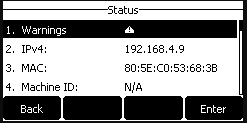
- Record the IPv4 address of the telephone and move to a computer for programming.
- Open your favorite browser window and enter the IP address recorded from the telephone in the address bar in the format of https://xxx.xxx.xxx.xxx and press enter.

- You may receive an error page regarding the certificate. If you are unsure how to proceed please see Yealink – Phone Web Interface Issue
- Enter the username and password of the telephone and click Login. If you do not know the login information to your telephone please open a support ticket.
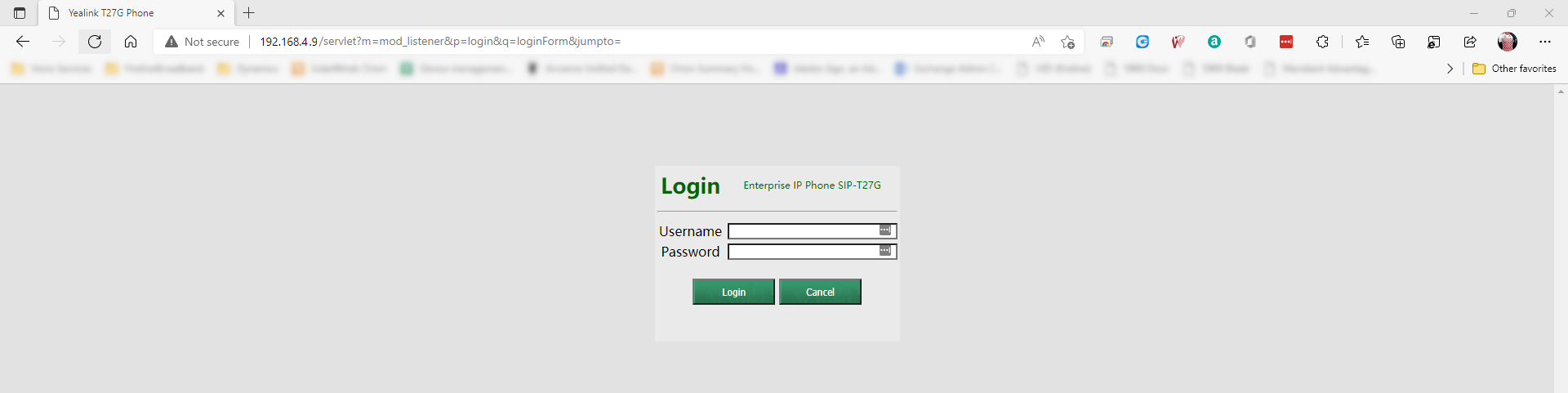
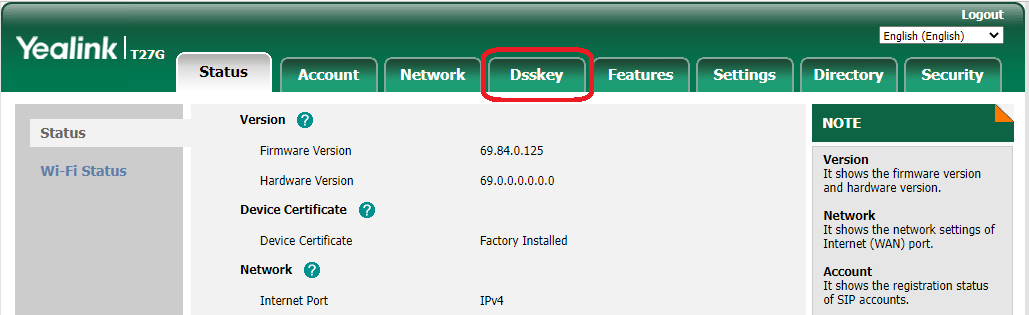
- Once logged in click the Dsskey Tab.
- From the Dsskey Tab you will have access to updating any of your keys. The left menu displays Line Keys, Programmable Keys and Ext Keys*** If your telephone are programmed using Auto Provisioning you will notice that there are keys that have been pre-programmed. We suggest you do not change these keys manually through the telephone. See Self-Care Portal Guide for additional programming details.
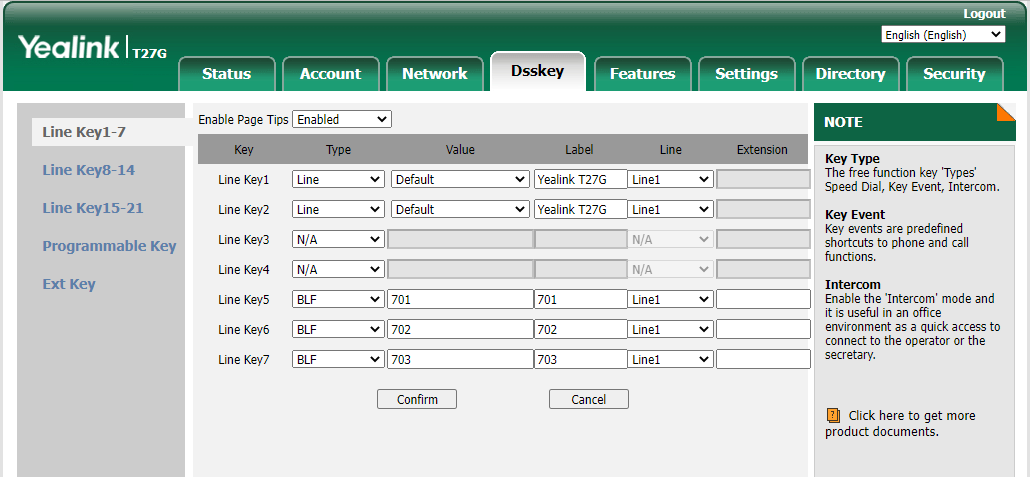
- Select the Type drop down next to the Key you want to remove.
- Change the Type by selecting “N/A”
- Click Confirm.
- The phone will be immediately updated with this change.
Last Updated on April 8, 2022