


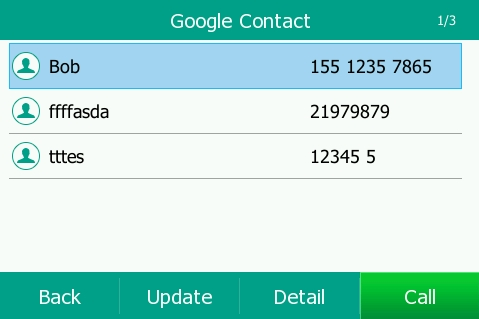
Google contact is a phone book that is stored on the Google Contact Server. You can sign in to the Google Contact Server on your phone, and then the phone can establish a connection with the Google Contact Server and download the phone book. As a result, Google contacts appear in the phone directory.
Enabling Google Contacts
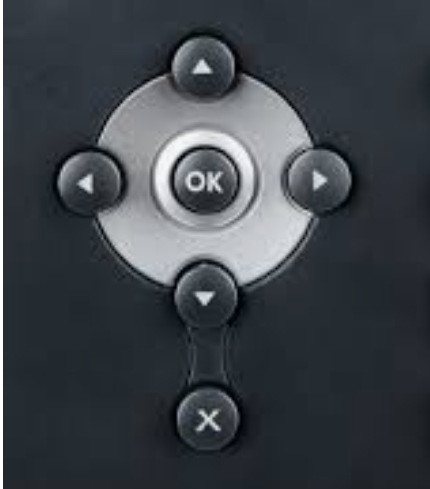
- Press and release the OK button found on the telephone base.
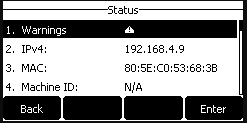
- Record the IPv4 address shown on the screen.
- Open the web browser of choice.
- In the address bar of the browser enter the IP address recorded in step 2, in the format of https://xxx.xxx.xxx.xxx and press enter.

- Log in to the telephone using the username and password. If you do not know the username and password, please contact support or open a support ticket.
- Once logged in use the menu to go to Directory > Local Directory>Google Contacts.
- Enable Google Contacts by setting the toggle button to on.
- Click the Sign-In button.
- Complete the Google sign-in process.
- Allow for your Google Contacts time to synchronize.
Accessing your Google Contacts from the Dial Pad
- Select the menu softkey
- Select Directory
- Select Google Contact
Version 01.06042022
Last Updated on July 9, 2022