


TTS is a feature that allows creation of sounds files using AI. These sound files can be used for Voicemail, Auto Attendant/IVR, etc., in your PBX system.
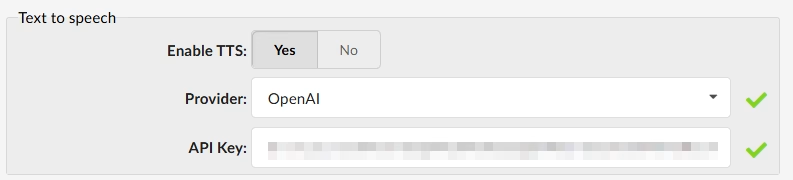
Enable Text to Speech
Settings > Server and click on the Server’s name. Scroll to the bottom of the page on the right-hand side.
- Set enable TTS to Yes
- Select your provider – Currently Open AI but more will be added
- Add your API Key
- Save the Server Settings.
Using Text to Speech
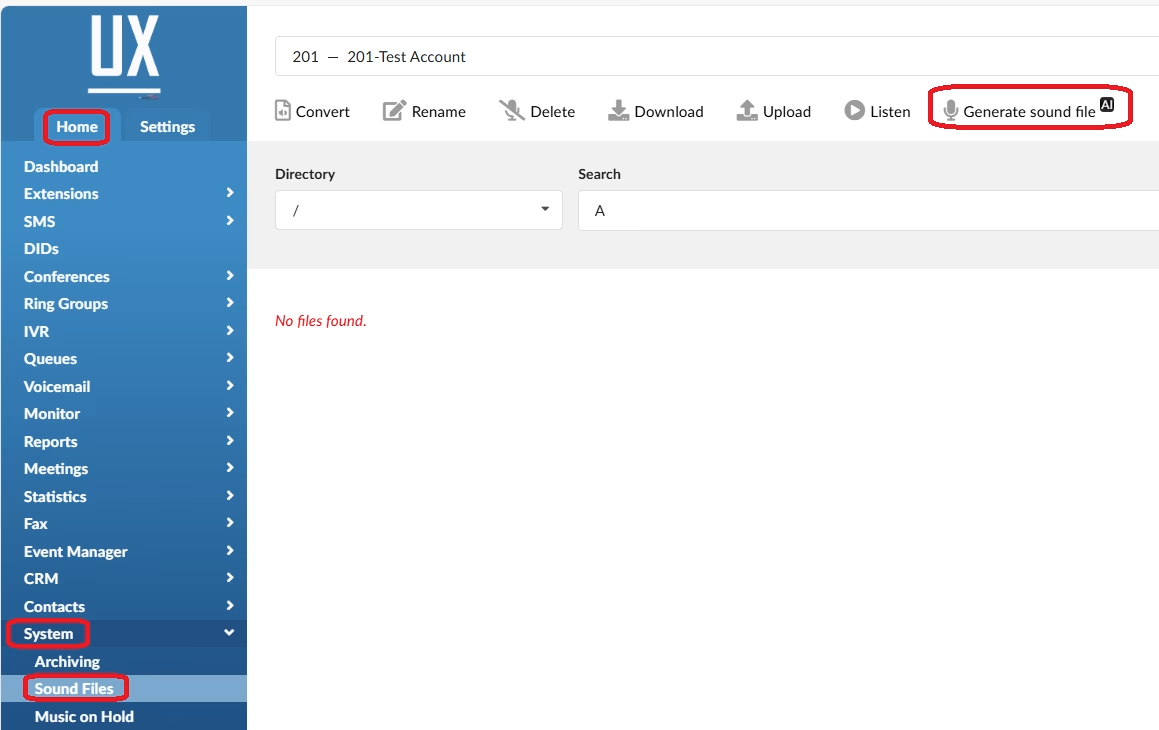
Home > System > Sound files
Creating a Sound File
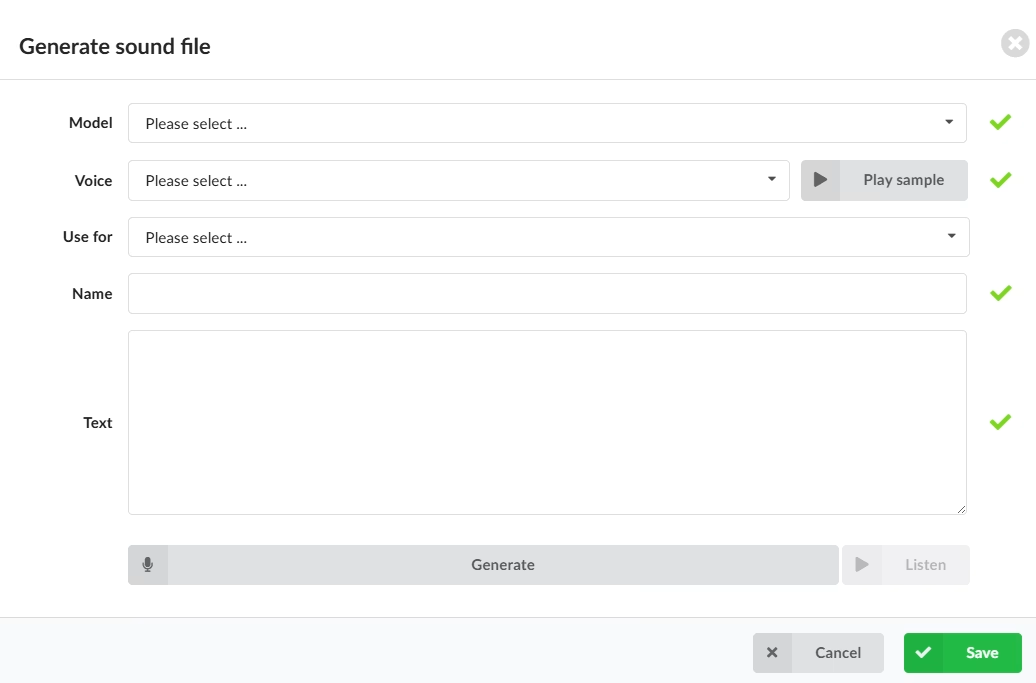
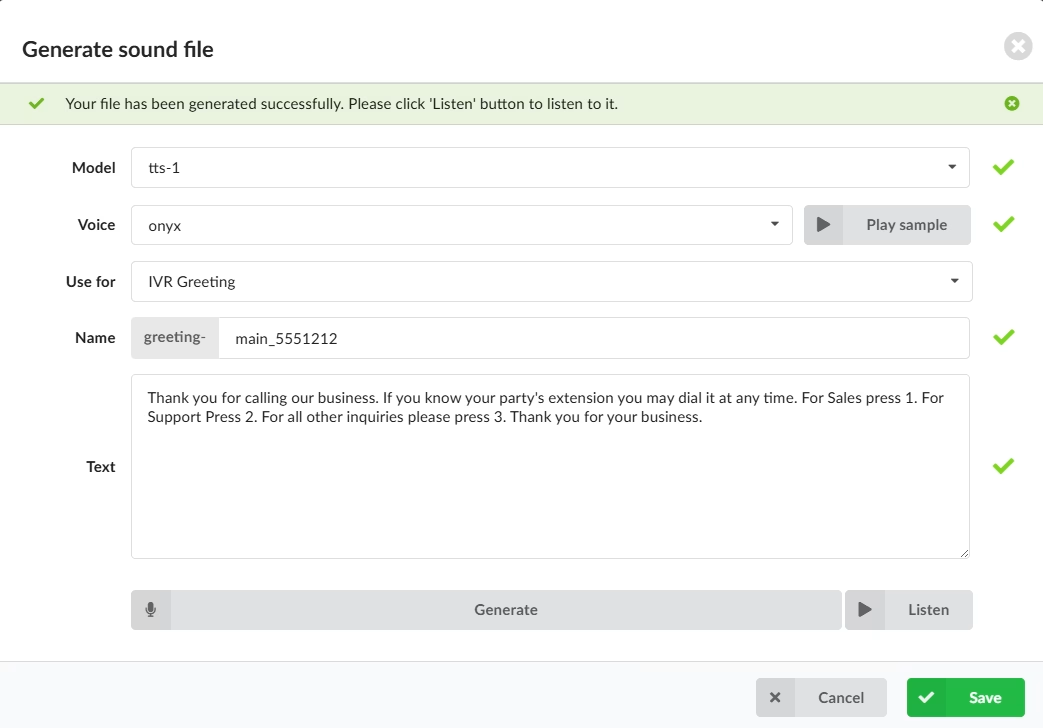
- Click the Generate sound file button and the window will appear
Model
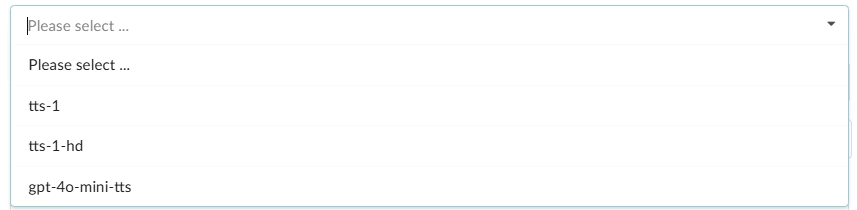
Choose the AI Model you would like to use by clicking the drop down and selecting.
Model Definitions
tts-1: Designed for real-time text-to-speech applications where speed is paramount. It’s designed to deliver audio quickly, making it ideal for interactive experiences like chatbots, live voice assistants, or any scenario where low latency is critical.
tts-1-hd: This model prioritizes high-quality, natural-sounding speech, making it perfect for professional voiceovers, audiobooks, podcasts, or any content where a premium listening experience is desired.
gpt-4o-mini-tts: The `gpt-4o-mini-tts` model is a newer addition, built on the powerful `gpt-4o mini` language model. It aims to offer both high performance and fast generation, potentially being the best OpenAI TTS model
Voice
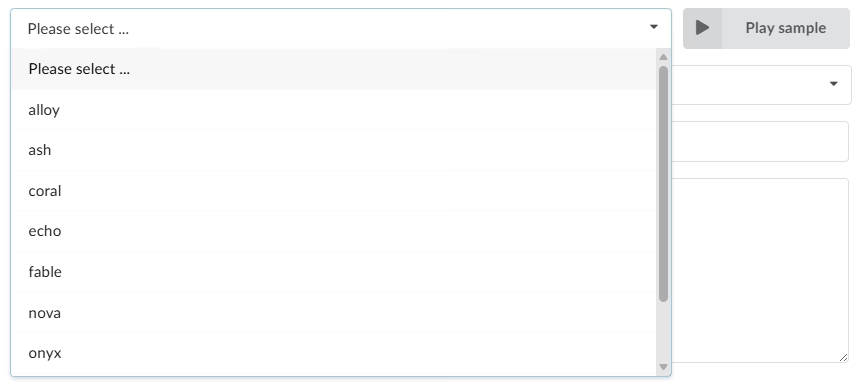
Select the Voice Dropdown and choose one of the many voice samples. Once selected you can use the Play sample button to hear how the voice sounds.
Name
Based on what you selected for the Use for, the system will add the appropriate prefix to the name, and you will complete it by filling in the remainder.

If you try to save a sound file and see the “File name is not valid. Please use only letters, numbers, underscores, and hyphens.” error message appear, indicating that the name is invalid, you will not be able to save the sound file.
When naming sound files, please use only letters, numbers, underscores and hyphens. Any other symbol is not acceptable, and it will result in an error message appearing.
If you try to save a sound file and see the “File name is not valid. File already exists. File name: ‘{{name}}’.” error message appear, indicating that a sound file with that name already exist, you will not be able to save the sound file.
Text
In the Text section you will enter the script of what you would like the recoding to say. Once complete you can click Generate, then play to hear the result.
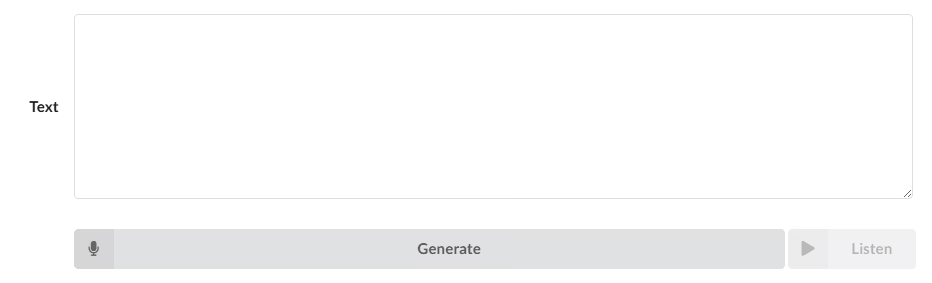
If you try to generate a sound file that has over 4096 characters in the “Text” field, you will not be able to do it. It will cut off the rest of the characters if you copy/paste it or if you enter it manually, you will not be able to write anything after the character 4096.
Once you are satisfied with your setup you can click save. This will save the file in Sound Files section under the prefix-name.
Saving the Audio
Once you save the audio and close out the window the sound file will appear in the section you selected in Use for, as well as under the Sound Files section.
Note: At this time the system does not save the setup information. We suggest keeping a copy of the script and settings for any changes you want to make later.
Last Updated on December 5, 2025