Sending a Fax from your Email
Faxing via Email
Sending a fax via email is quite simple. There are only a few things you need, and you’ll never get up to send a fax again!
If your a Communicator user you may also send faxes directly from the app as well.
Requirements
- All documents that are being faxed must be in .PDF format.
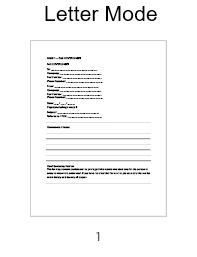
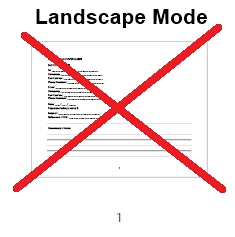
- The pdf orientation must be in letter format. Landscape orientation will cause the fax to fail.
Procedure
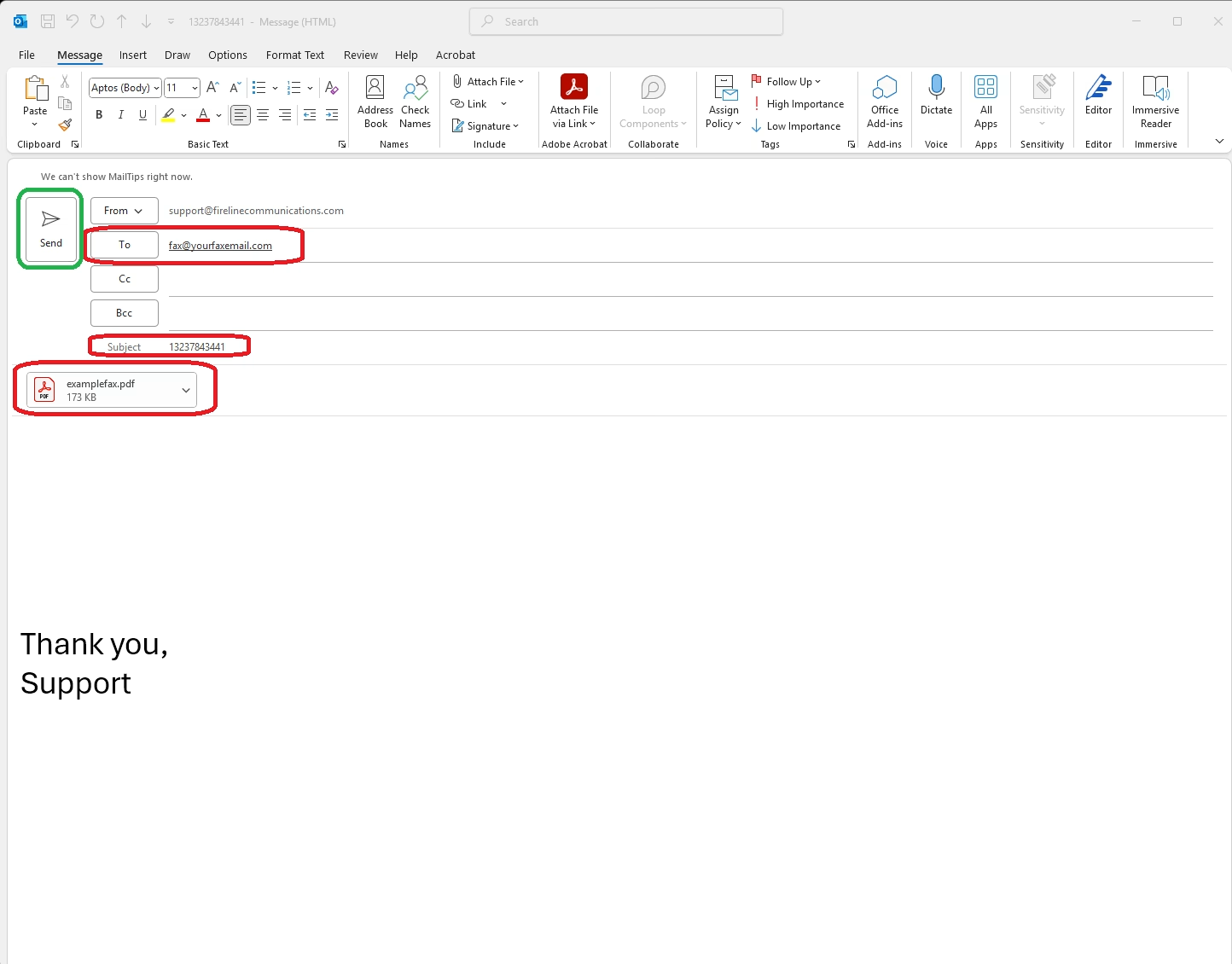
- Open your email client and create a new email.
- Use the email address that was designated as your fax address in the TO: address. Example: fax@yourdomain.com
- In the Subject field, enter the 11 digit telephone number, (no special characters), of the fax you are sending to. Example: 13235551212
- Attach the PDF document(s). If you are sending multiple attachments add them in the order you would like them to be received.
- Click Send to fax the document.
NOTE: Nothing in the body of the email will be included in a fax. The only thing that will be delivered to the destination fax are the .pdf document(s).
What You Should Know
- You can have a maximum of 5 individual pdf attachments, per fax.
- Each pdf document may contain multiple pages.
- If you attach non .pdf documents, your email will be skipped and deleted from the server.
- Nothing in the body of the email will be faxed.
- You will receive a status update via email once the fax has been completed.
- The fax will try 3 times before providing a failed email.