Unable to Place Calls With Communicator Desktop, Web or Mobile
Unable to Place Calls With Communicator Desktop, Web or Mobile
When attempting to place a call using Communicator you recieve an error. This error occurs if it is a internal or public call.
Check extension’s settings
- Login to your management portal.
- From the Home tab click Extensions> System and Edit the extension in question
- Move to the Network Related section and Click “YES” to WebRTC Enabled
- If you do not see the section select Show advanced options Tab at the top of the page.
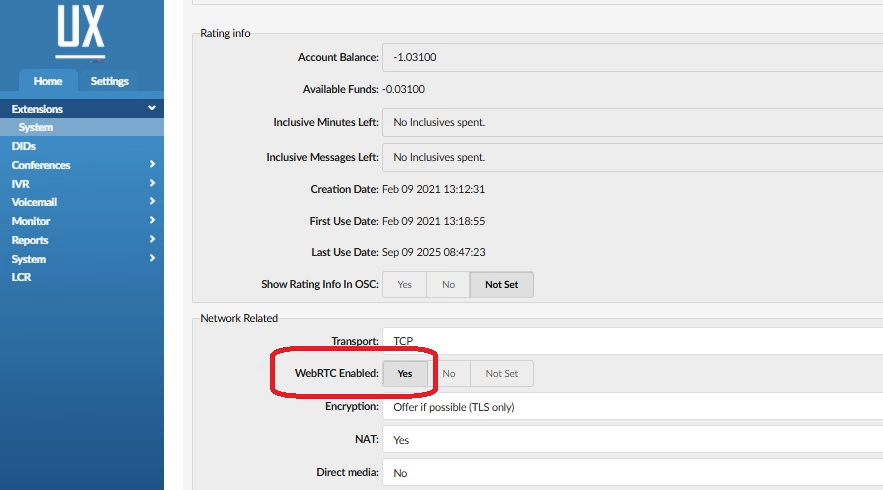
- If you do not see the section select Show advanced options Tab at the top of the page.
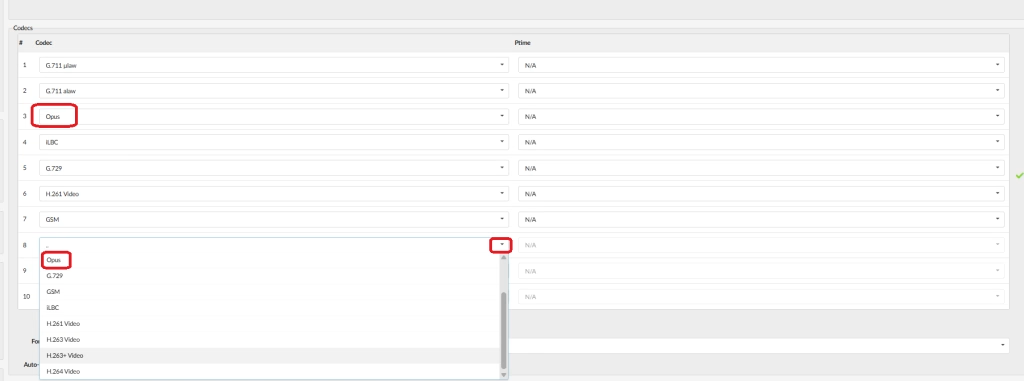
- Next, check if the OPUS codec is enabled or the extension.
- The codecs section should be on the right side and down from the network section.
- If you do not see it, click on the down arrow on the next avaliable free section annd select Opus.
- Click to Save your settings.
Communicator Desktop
If you are using Communicator Desktop you will also want to check what phones you have enabled and or Default.
Communicator Desktop V7
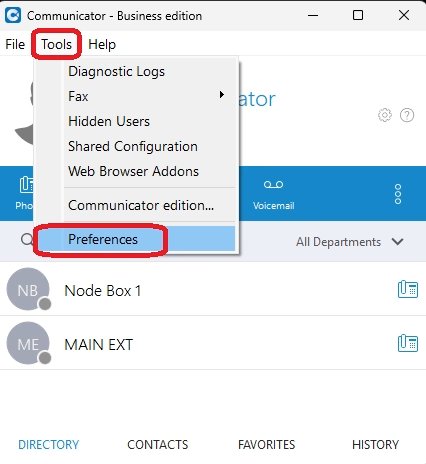
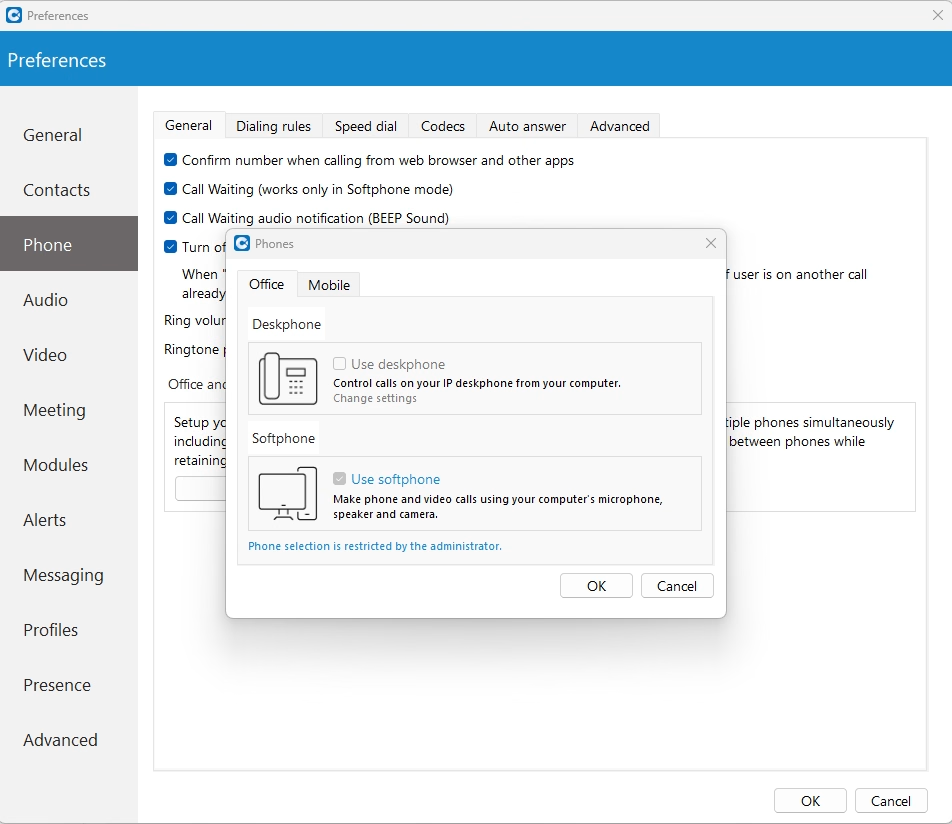
- Click Tools > Preferences
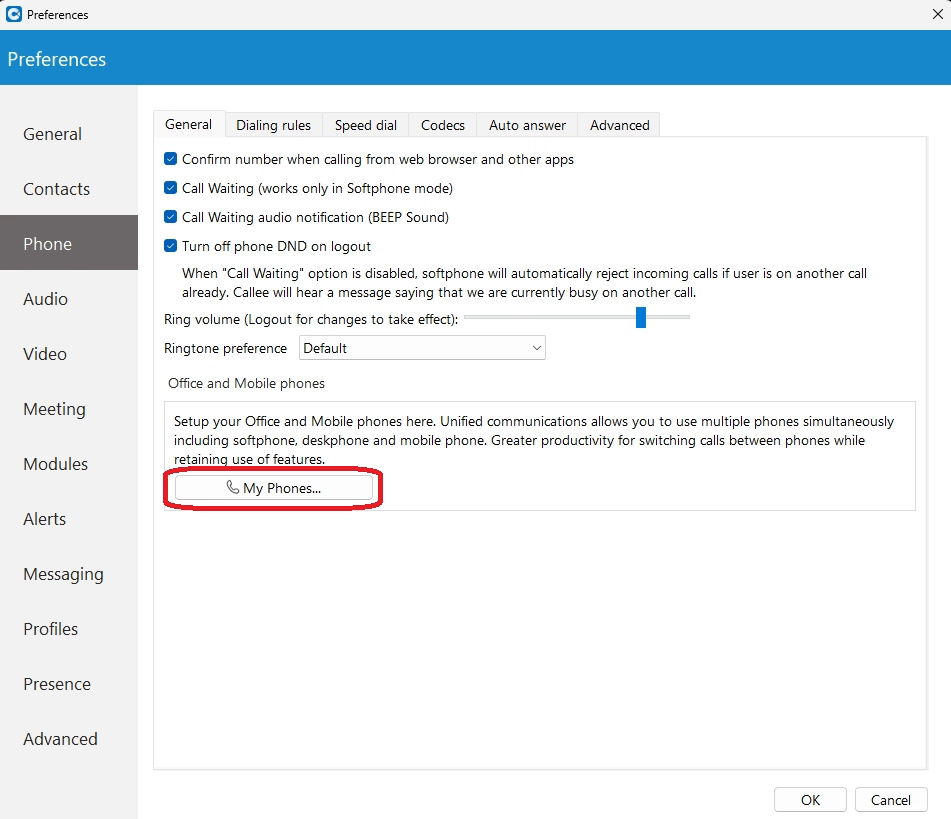
- Select the My Phones button
- Check that your telephones are assigned properly. If use deskphone is select and set to your default phone your calls will fail.
- Select Use softphone as your default telephone.
- You should now have the ability to place calls from Communicator.
Communicator V8
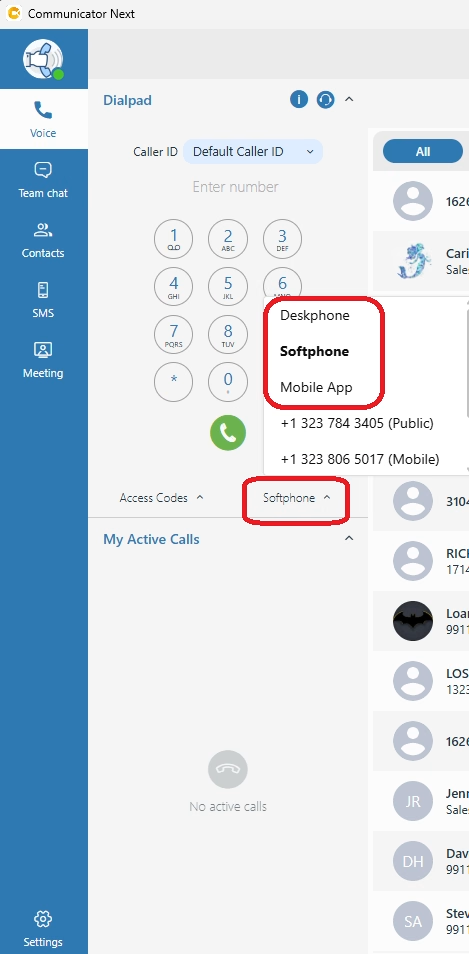
- Click the Voice option
- Under the dialpad, right side you will see an up arrow and will display the currently set default phone. If it is set to Deskphone and you do not have a deskphone or the dsekphone is not avaliable / down then your calls will fail.
- Change the option to Softphone.
- If the option is set to Softphone, you should be able to now make calls.
For additional assistance please use out Live Chat at the bottom of your screen, contact us via email support@firelinecommunications.com or give us a call 877-347-3147.