Sound Files
Sound Files Management
Overview
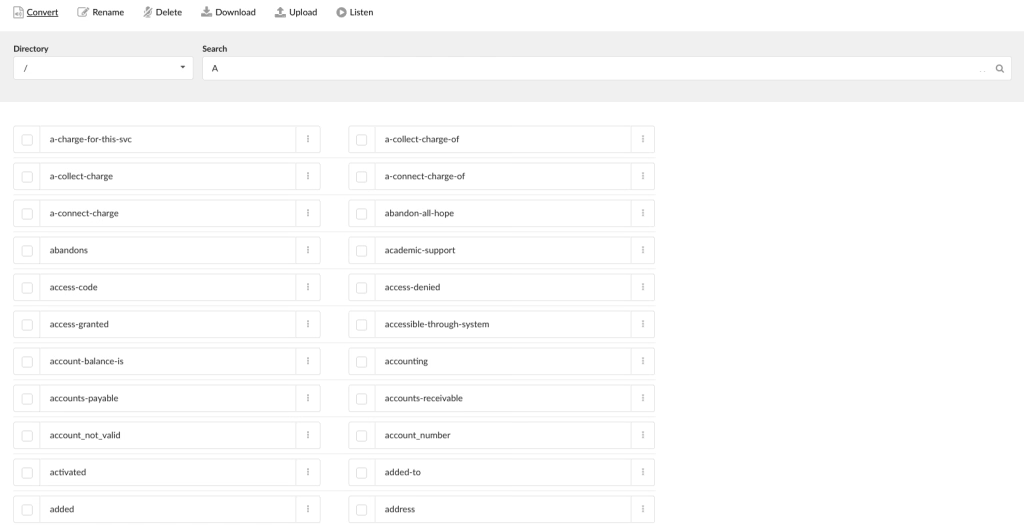
Filtering Sound Files
Selecting a Directory
Searching for a Sound File

Viewing Available File Types
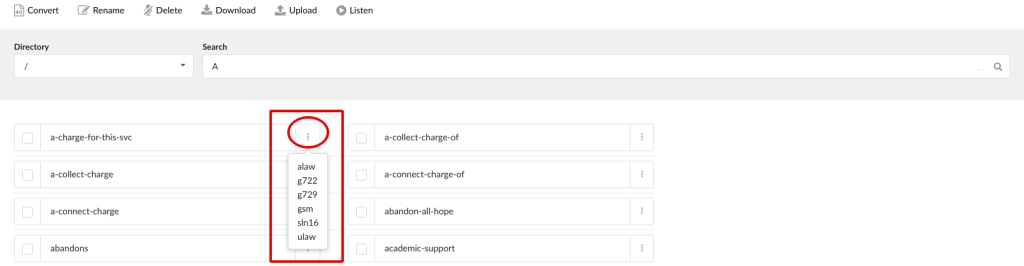
Managing Sound Files

Converting Audio Files
Renaming Audio Files
Deleting Audio Files
Uploading Audio Files
- Select Upload
- Choose a sound file from your desktop to upload it on the system.
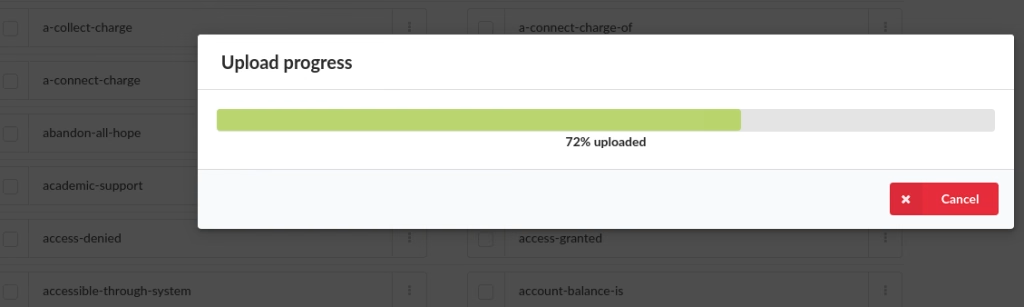
- A progress bar will be shown when uploading a file.
Downloading Audio Files
Listening to Audio Files
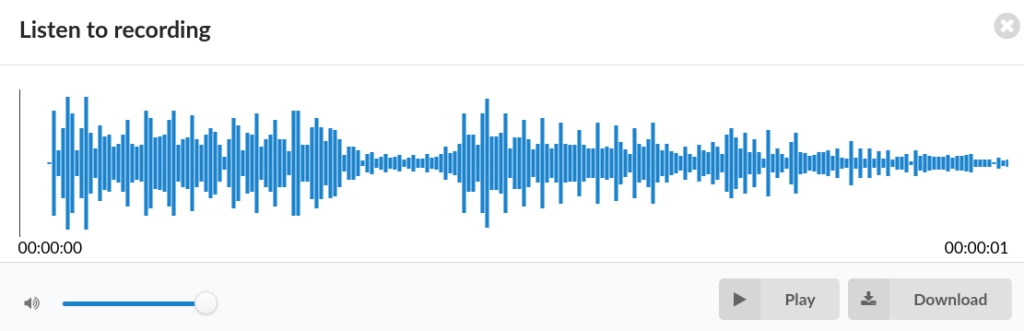
This option allows listening to a sound file. Select a box next to a sound file and click ‘Listen’ to hear it.
TIP: The PBX will play only sound file types equal to enabled codecs on dialing extension.
For example, Extension 1000 has only the gsm codec enabled. When the same Extension logs in as a Queue Agent by dialing ‘*202 + $AGENT_NUMBER’, all sounds played by the PBX (asking for password etc…) will be in the ‘.gsm’ format.
If multiple codecs are enabled for Extension 1000(ulaw,alaw,gsm), the PBX will play the sound files with the better sound quality (ulaw/alaw).
Greeting File Names
In order for pre-recorded greeting files to be available for use with different PBX features they must follow the specific naming convention.
In the table below you will find the list of features and matching prefixes greeting file(s) must be named with in order to be available for use with that feature.
| FEATURE | PREFIX | ||
|---|---|---|---|
| 1. Dialer | dialer-announce- | ||
| 2. Dialer (Voice Messaging Strategy) | dialer-vm-ivr- | ||
| 3. DID | greeting-did- | ||
| 4. IVR | greeting- | ||
| 5. Queue | queue-greeting- | ||
| 6. Queue Agent Announce | agent-announce- | ||
| 7. Queue Periodic Announce | periodic-announce- | ||
| 8. Queue Caller Announce | qc-announce- | ||
| 9. Ring Group | greeting- | ||
| 10. Ring Group Timeout Message | announce- | ||
| 11. Ring Group Confirmation Message | rg-announce- | ||
| 12. Ring Group Call Answered Message | rg-late-announce- | ||
| 13. Voicemail Groups Greeting | vm-greeting- |