Licensing Communicator Extension
When adding Communicator the assigned extension must be licensed prior to attempting to connect. You can view your licensing status by;
Communicator Licenses
- To view your licensing status log into your portal, select the Home tab and select Apps at the bottom of the menu.
- The Apps screen will show you the type of license, the quantity of licenses you own and the extensions they are assigned to.
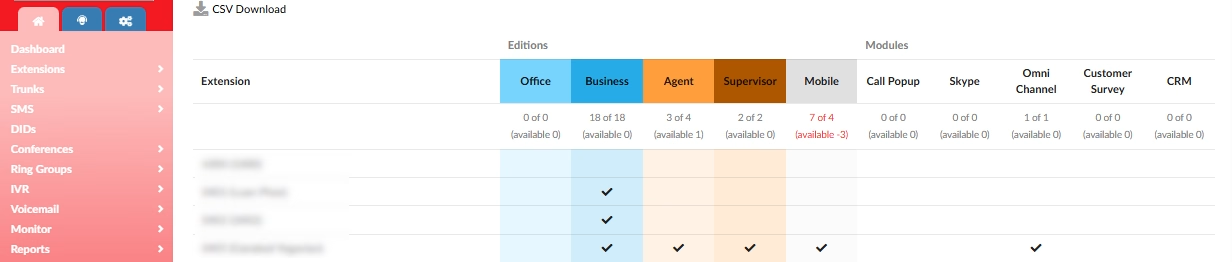
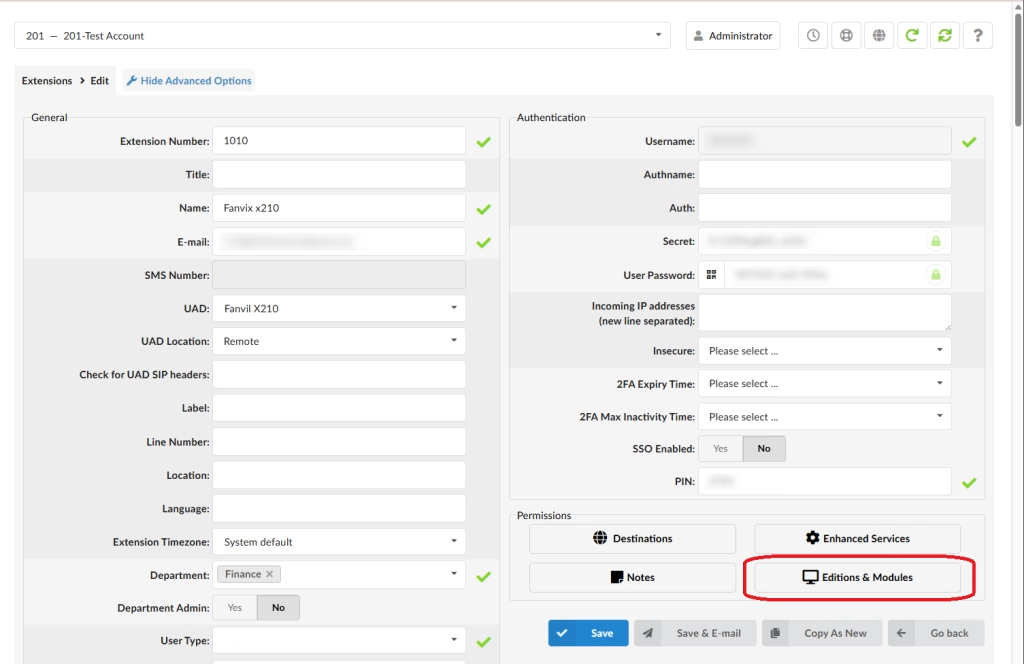
3. If you do not see the extension your working with assigned a license you can assign one by going to the Extensions menu located on the Home Tab.
4. Select the Extensions you are working with from the menu.
5. Click the Editions and Modules button.
6. By defaul “Use department template” is selected. Uncheck, unless you have configured departments, and select the Editions & Modules you would like to license the extension for.
7. If you would like to restrict any features for the user you may uncheck andy of the options in the glocOM Features section.
8. Click Save.
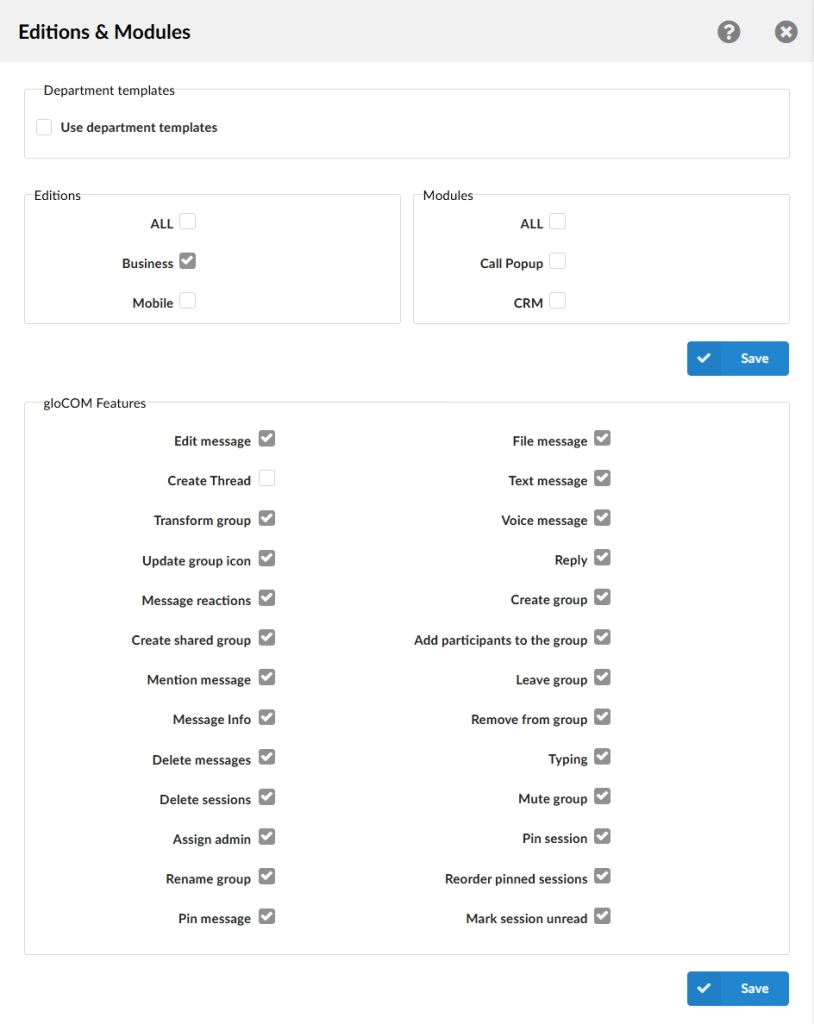
10. Your extension is now licensed and can now be used to sign in to Communicator.
For assistance installing Communicator, see our installation video.