Communicator – VTiger CRM
Vtiger
- Login to Vtiger and copy the domain portion of your Vtiger instance up to the .com. Example: https://examplecompany2197.od2.vtiger.com/
Configuring the PBX
-
- Log into your PBX by browsing to https://ux.firelinecommunications.com or your PBX domain.
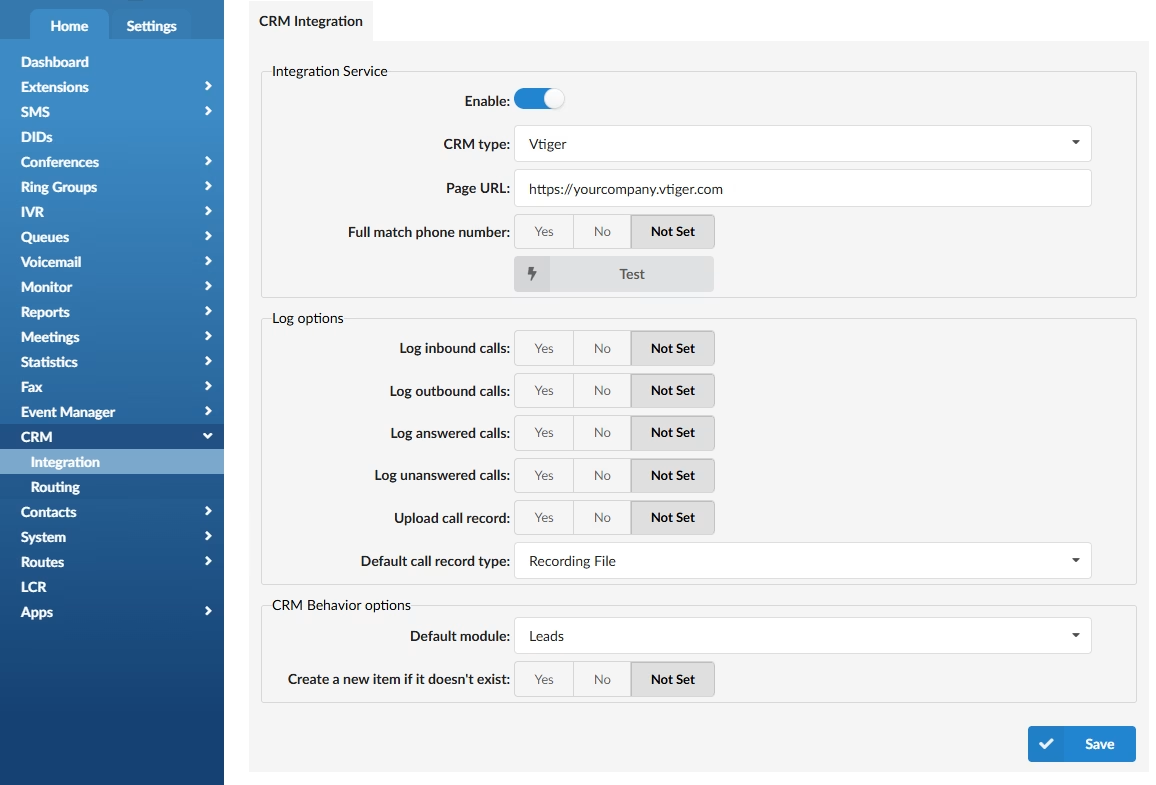
- Once logged in select the Home tab > CRM > Integrations.
CRM Integration Service
- Enable: Toggle On
- CRM Type: Vtiger
- Page URL: Enter your Vtiger CRM Page URL which you copied from earlier.
- Full match phone number: Select Yes
- Click Save
Once you click Save the Test Button will be enabled. - Click Test
When you click Test, a pop-up window will open where you can enter your CRM account information to verify the connection.
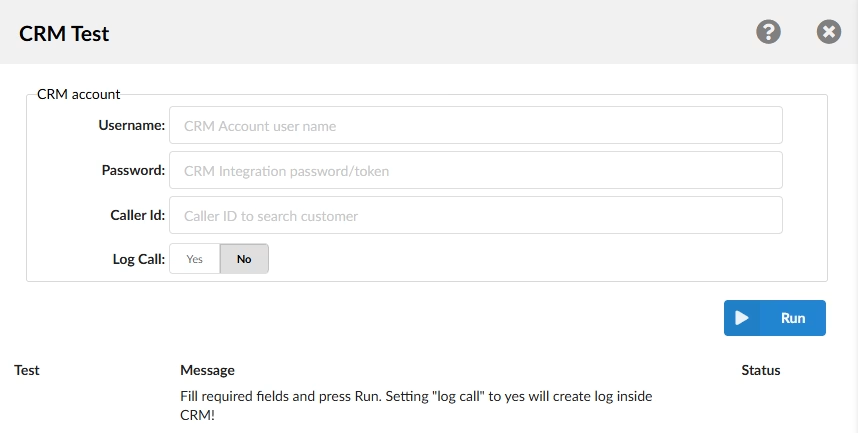
- Enter the Authentication information from the CRM.
- Username: Enter the Vtiger email.
- Password: Enter the Vtiger access key.
- This can be found in your Vtiger prefrences section.

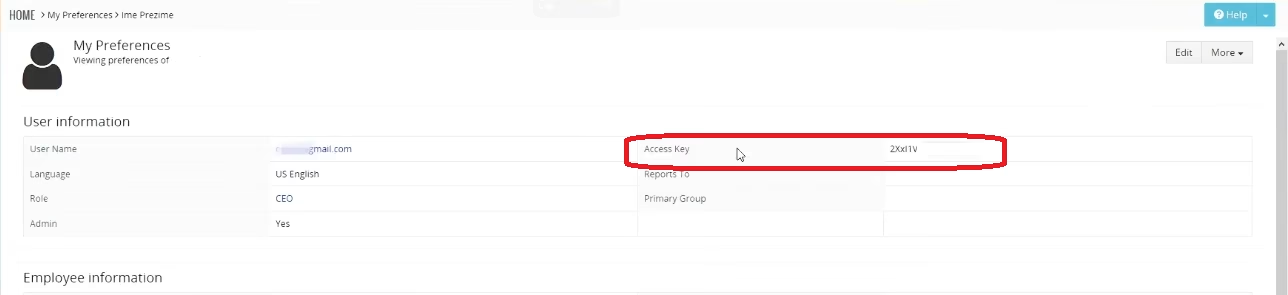
- This can be found in your Vtiger prefrences section.
- Return to you PBX
- After entering the required information, click Run to start the integration test.
- You should see a sucessfull test message.
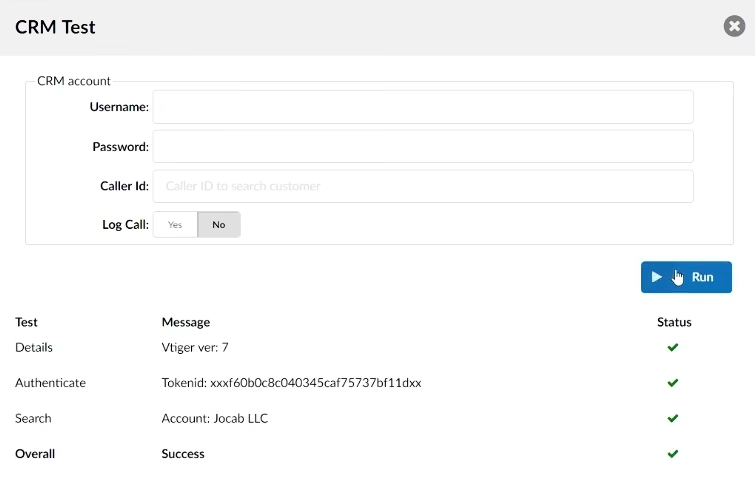
- You can also test a query by entering the following and clicking Test again
- Caller ID: (Optional) Enter a Caller ID to search for an existing customer.
- Log Call: Choose whether to create a call log entry inside Vtiger.
(e.g., Yes/No)
Log Options
Users can configure default call logging options for Communicator. These settings define what call data is sent to Vtiger CRM. Each Communicator user can override these defaults if needed.
Default log options include:
-
Log inbound calls – (Yes/No/Not Set)
-
Log outbound calls – (Yes/No/Not Set)
-
Log answered calls – (Yes/No/Not Set)
-
Log unanswered calls – (Yes/No/Not Set)
Upload Call Record
This option determines whether a call record is uploaded after each call:
-
Yes: Uploads the call record to Vtiger, based on the selected record type.
-
No: The call record will not be uploaded.
-
Not Set: No action is taken.
Default Call Record Type
When Upload Call Record is set to “Yes,” choose one of the following options:
-
Recording File: Uploads the actual call recording file to the CRM. It can be accessed directly from the call details section.
-
Link to Call Record: Provides a link to the call record stored in the Online Self Care (OSC) portal. Users must log in to access it.
CRM Behavior Options
These options control how new records are created when a call comes in from an unknown number.
-
Default Module: Select the default Vtiger module to open when creating a new record.
(e.g., Leads) -
Create a new item if it doesn’t exist:
-
Yes: Automatically creates a new record (e.g., Lead) when the caller ID is not recognized.
-
No: Does not open or create a record for unknown caller IDs.
-
Not Set: Leaves the behavior undefined.
-