


- Login to your system using an administrative user and password.
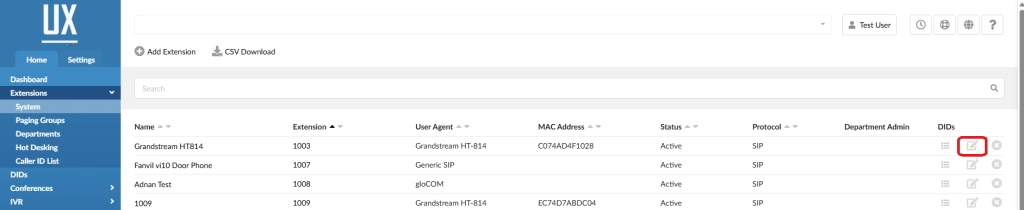
- From the Home Tab click extensions.
- Click Edit for the Extension
- General
- The extension screen will load.
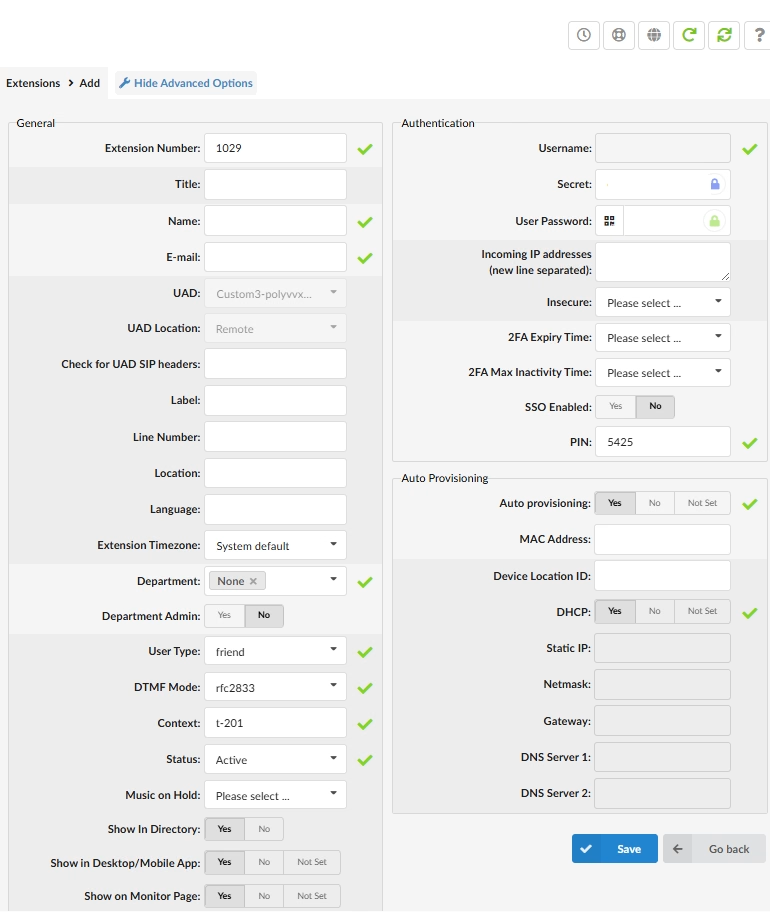
*** While there are many options that can be used to configure an extension, we will provide the basic information so may get an idea of how it all works. - Extension Name: Name of the extension
- E-mail: all extensions are required to have a properly formatted unique email address.
- Do not use an email on an extension that is used as an administrative extension.
- .Do not share email between extensions as it is a security risk.
- Show in Directory: Allows the users extension to be avaliable when a customer uses the search by directory feature.
- Show in Desktop/Mobile App: Allows you to show or hide an extension from the apps
- Show on Monitor Page: Used to monitor the status of an extension.
- The extension screen will load.
- Network Related
- Transport: Default UDP. Depending on your network you have the option to select between UDP, TCP or TLS.
- WebRTC Enabled: If you are using communicator select Yes
- NAT: If you are using NAT on your system select Yes
- Caller ID
- Trust Remote-Party-ID: Yes
- Send Remote-Party-ID: Use Remote-Party-ID
- Call Properties
- Area Code: If you have extensions calling out from multiple area codes you can set them here. If all extensions are using the same area code you can set it in the server settings and all extensions wil comply.
- Ringtime (sec): Default 32. This setting controlls the number of rings before the call is transferred, if there is voicemail, sent back to the person who transferred a call to the extension, or busy out if the call is a direct call.
- Incoming option: Default tr. Used for advanced settings for incoming calls. * Beware when setting different values as these can cause a security risk
- Groups
- Call Group: Allows you to set the extension join the extension to a single Call Group. Extensions can belong to only 1 call group.
- Pickup Groups: Sets which Call Groups the extension can pickup. Call Pickup feature code is *8.
- Call Control
- Incoming limit: Allows you to set the maximum number of incoming calls the extension can recieve.
- Outgoing limit:Allows you to set the maximum number of outgoing calls an extension can make.
- Authentication
- PIN: used for the users voicemail access.
- Auto Provisioning
- Auto Provsioning: based on UAD settings.
- MAC address: Required if auto provisoning is set to yes.
- Device Location ID: Used as the location in a 911 call. Example, if the device Location ID is set to 2nd Floor Suite 201. A 911 call would send the address and 2nd Floour Suite 201, to better direct emergency services to the exact location.
- DHCP: If using DHCP set to Yes
- Voicemail:
- Voicemail: Yes to give the extension voicemail.
* for additional information regarding voicemail please visit our voicemail guide
- Voicemail: Yes to give the extension voicemail.
- Click Save to create the extension
Once the extension is created you will find a Permissions section under the authentication. There are 4 sections;
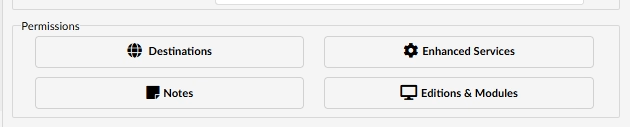
- Destinations
- Allows you to granualarly control what destinations the extension has access to.
- Enhanced Services
- Allows you select the features available to the extension.
- Notes
- Allows you to add documentation on the specific extension
- Editions and Modules
- Allows you to select application licensing for the extension.
Last Updated on October 7, 2026