


Yealink AX83H Reset to Factory
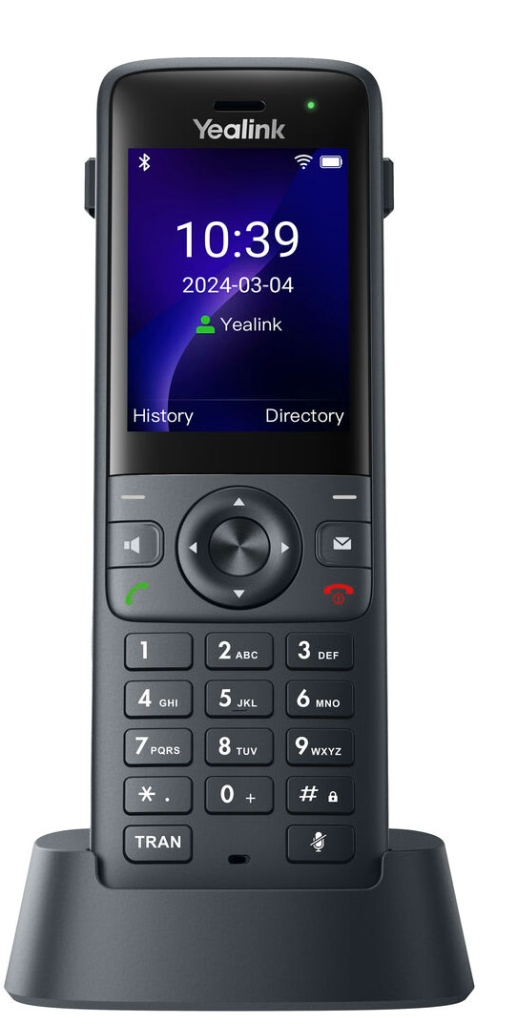

- Press and hold the middle Menu button for 10–15 seconds until you see “Reset to factory settings?”
- Confirm with the softkey (left or right “-” depending on firmware — it’ll be labeled)
- Wait for it to reset and reboot (“Welcome Initializing…Please wait”)
- Once the phone has reboot you can select the language and press the Next button
- Press the down arrow and select Available Networks.
- You will see a message regarding using the # button to select between numbers, lower case and upper case letters. You will need this to enter your password.
- Press the down arrow to show password.
- Press up arrow to return to the password.
- Enter your password and click Save
- Your phone will connect to your Wi-Fi. If it fails, please confirm your Wi-Fi settings.
- If you are using auto-provisioning, the phone will connect to the server and download the phones setting. Once this completes the phone will reboot.
- You can continue with entering the Language again or just wait for the telephone to reboot.
- Once the reboot is complete you should see a green icon and your extension number.
Last Updated on July 9, 2026