


Instant Meetings
- Click on Meeting icon.
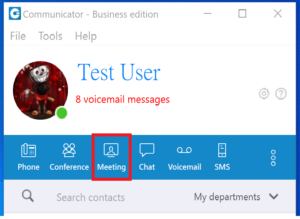
- The Meeting Window will pop out to the left.
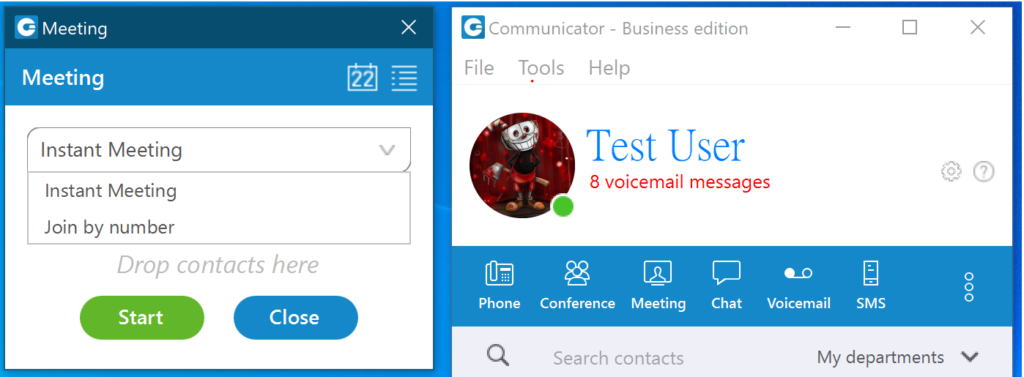
- To schedule a Meeting you can click the calendar icon.

- To view a list of Meetings click the list icon.

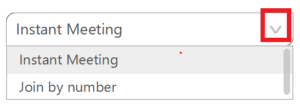
- You can create and instant meeting or join an existing meeting by selecting the drop down and making a selection. (default is Instant Meeting).
- To make a meeting Public so anyone can join the meeting, place a check in Public (anyone can join).
 When creating a public meeting all that is required to join the meeting is the meeting address. Depending on the purpose of the meeting, you can post the meeting link to a website, or allow other users to send the link to their contacts.By default, meetings are private to invited users only.
 - If your meeting involves people from your account, you may drag and drop them into the meeting from your Communicator Directory.

Dragging & Dropping Contacts
To add contacts from your Communicator Directory Left click and hold the contact while dragging them to the “Drop contacts here” section of the meeting window.
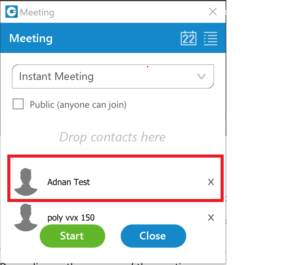 You will see the contact added to the meeting. To remove a contact press the X to the right of the contacts name.
 - Once that you have all the Meeting participants added to the meeting window, click Start to begin the Meeting.
- When an Instant Meeting is started Participants will receive an email inviting them to the meeting.
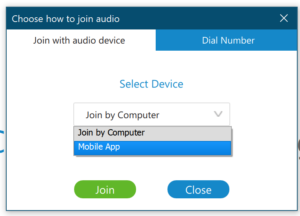
- The meeting window will be opened and you will be asked what device you would like to use for the audio. Depending on the devices you have available, you can select the one that best meets your needs.
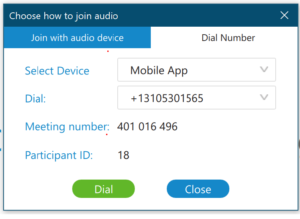
- If you would like to dial in to the meeting, select the Dial Number tab.
- Select the Device you would like to use.
- If you want to dial from a source not available in one of the selection, you can do that, then click close.
- Once you join with your audio source the Meeting will begin.
- The Meeting window will enable the tool bar where you may select a variety of options.

- Mute: Click to Mute or Un-Mute your Microphone
A red line through the icon indicates the device is disabled or “Muted”.

- The Karat symbol displays your audio options
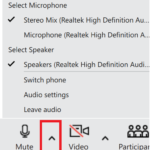
- Select Microphone
- Select Speaker
- Switch phone
- Audio Settings
- Leave audio
- Video: Click to Enable and Disable your Video.
A red line through the video icon indicates the device is disabled

- Participants: By clicking on Participants an additional window will open to the right of the main window. The window will display all participating users and their meeting status

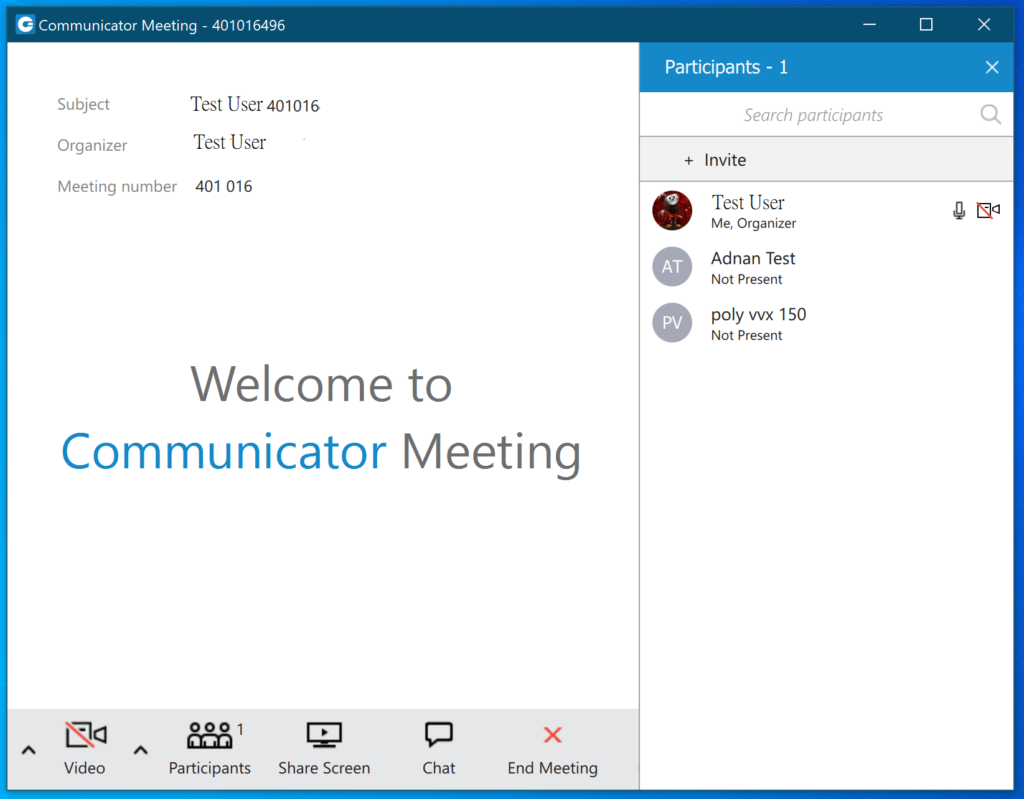
- In the Participant you will notice the following:
- Displays the total number of Participants in the meeting.
- Search capabilities
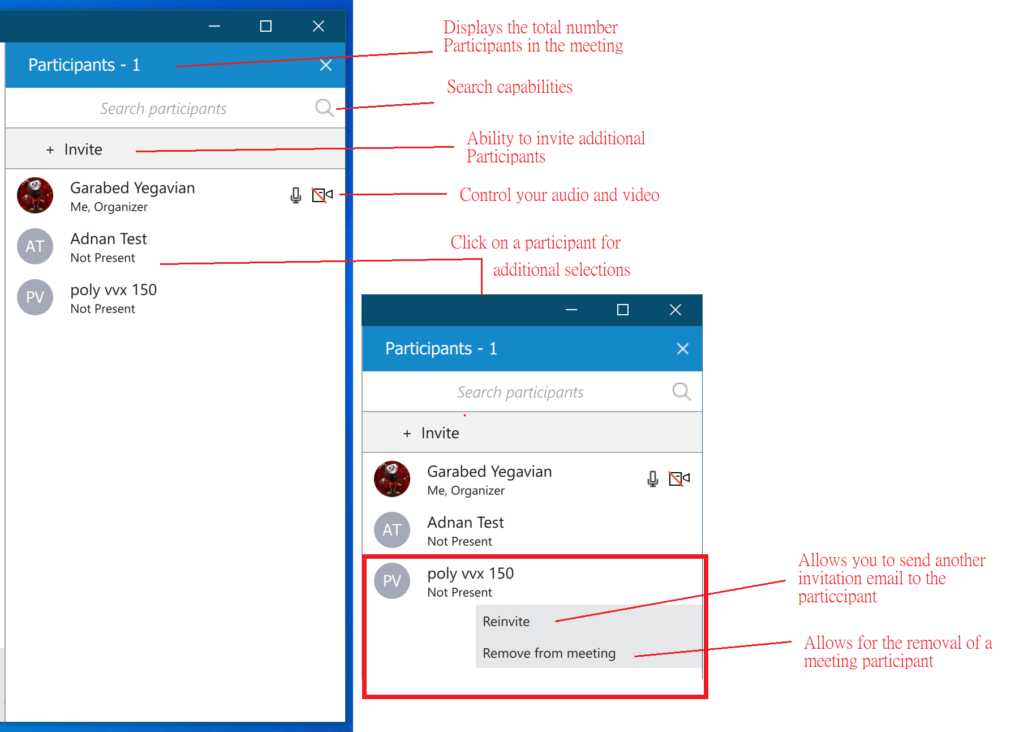
- Ability to invite additional Participants
- Control your audio and video.
- Click on a Participant for additional selections.
- Allows you to send another invitation email to the Participant
- Allows for the removal of a meeting Participant.
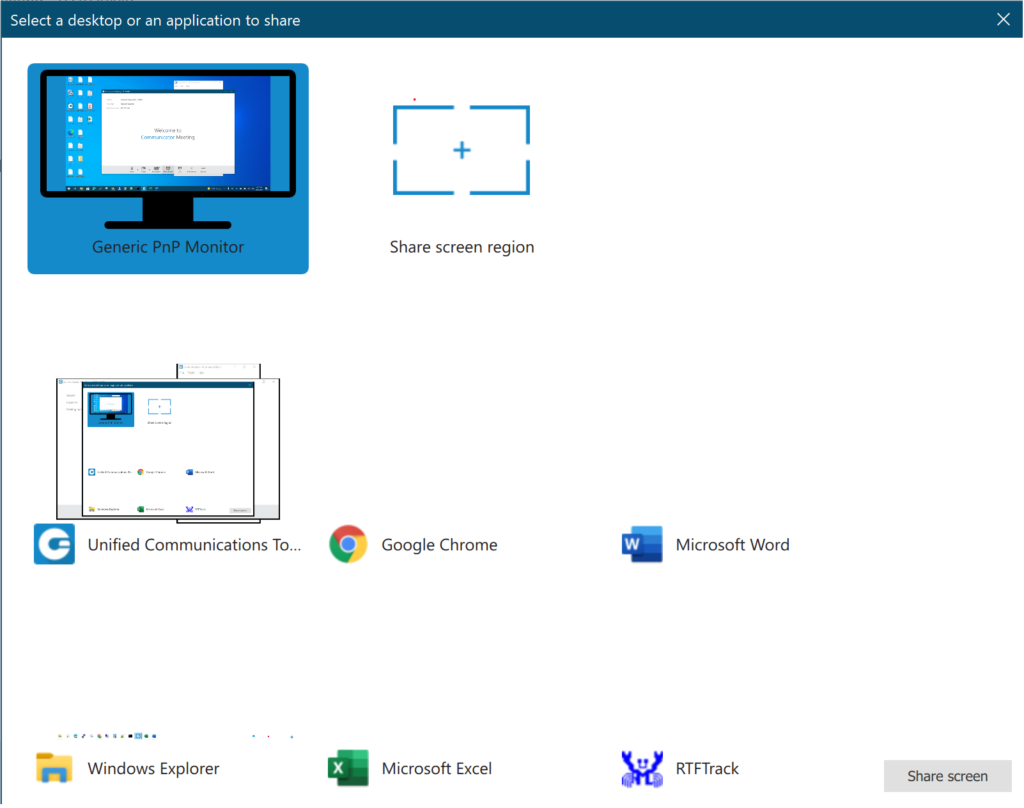
- Screen Share gives you the capability for you or a participant to share a screen.

- The share screen option allows you to select from open programs on your computer or share just a region of your screen. Once selected your screen will be shared.
- When sharing, your menu bar will be hidden on the top of your screen. Hovering over the Sharing desktop tab will display the fill menu.

- When sharing a screen, a few additional buttons will be available.
- New Share allows you to change the screen or application that is currently being shared to a different one.
- Clicking the Pause button is viewable only during meetings. This will pause the screen share for the participants. You can use this time to perform any steps you do not want participants to view.
- Stop sharing, ends the screen share. The meeting will continue.
- Remote control allows you to give control of you shared screen to a participant.
- When sharing a screen, a few additional buttons will be available.
- To chat with meeting participants you can click the Chat button. The chat window will expand from the right side of the meeting window.

- Ending a meeting is as simple as clicking the end meeting button.

- The Option Button displays additional options to choose from
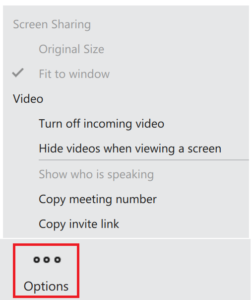 .
.- Video Options
- Turn off incoming video
- Hide videos when viewing a screen
- Copy the meeting number
- Copy the invite link.
Scheduling a Meeting
- Click on the Meeting icon
- The Meeting Window will pop out to the left.
- Click on the calendar icon
- The Schedule window will open in the middle of your screen.
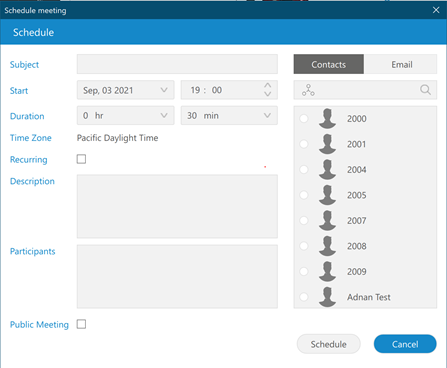
- Subject: Enter the subject of the Meeting
- Start: Enter the start date and time.
- Duration: Enter the duration by Hour and or Minute
- The time zone will be selected based on your computers time zone.
- Recurring: If this is a recurring meeting place a check mark in the box and an edit button will appear.
- Click Edit and the Recurring window will open
- Complete the Recurring Interval and click Save
- Description: Enter a description for the meeting
- Participants:
- Click the Contacts button to select participants from your system
- Click email to select contacts from your address book or enter email addresses manually.
- Public Meeting: If you want to hold a public meeting where anyone with a link to the meeting can join, place a check mark in the box
- Once the information in the scheduling window is complete, click Schedule.
- The system will send an email to everyone on the participant list including you.
- You can add this invite to your calendar.
Checking Scheduled Meetings
There may be times when you cannot recall the next meeting, or you forgot to save the invite to your calendar.
- Click on the Meeting icon
- The Meeting Window will pop out to the left.
- To see scheduled or in progress meetings click on the meeting list icon
- The Meeting list will appearUpcoming Tab: The upcoming tab displays all upcoming meetings.
- You can copy an invitation for a meeting by selecting the meeting, then clicking COPY INVITATION.
Example:
Subject: Tuesday Meeting
Time: September 14, 2021; 08:30 Pacific Daylight Time
Join meeting
https://ux.firelinecommunications.com
Meeting number: 00000000
Dial number to join meeting
+18885551212
- You can copy an invitation for a meeting by selecting the meeting, then clicking COPY INVITATION.
- To start a meeting, select the meeting and click START
- To edit a meeting select the meeting and click EDIT
- Recurring Tab displays all scheduled recurring meetings.
Last Updated on March 24, 2023