


- Open your Yealink USB Connecttool, then select Device supportà Logging level. Before exporting the log file, please select log level to 6 or 7 first.
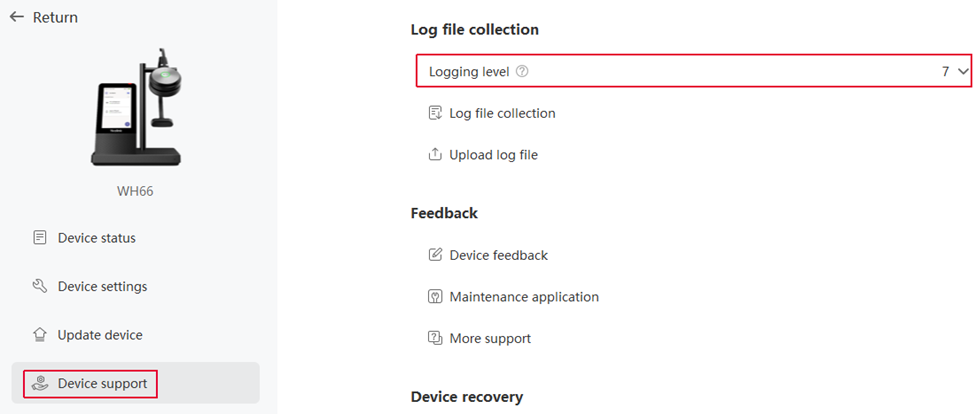
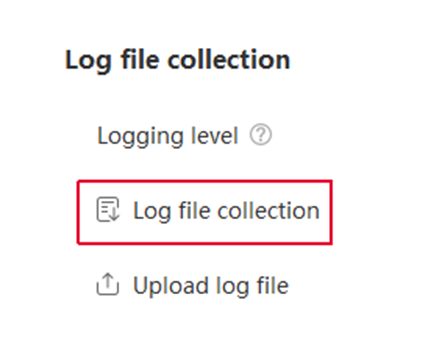
2. Then, make an audio call, and go to the path: Device support Log file collection, select Audio collection and Collect the operating system logs, then click Start.
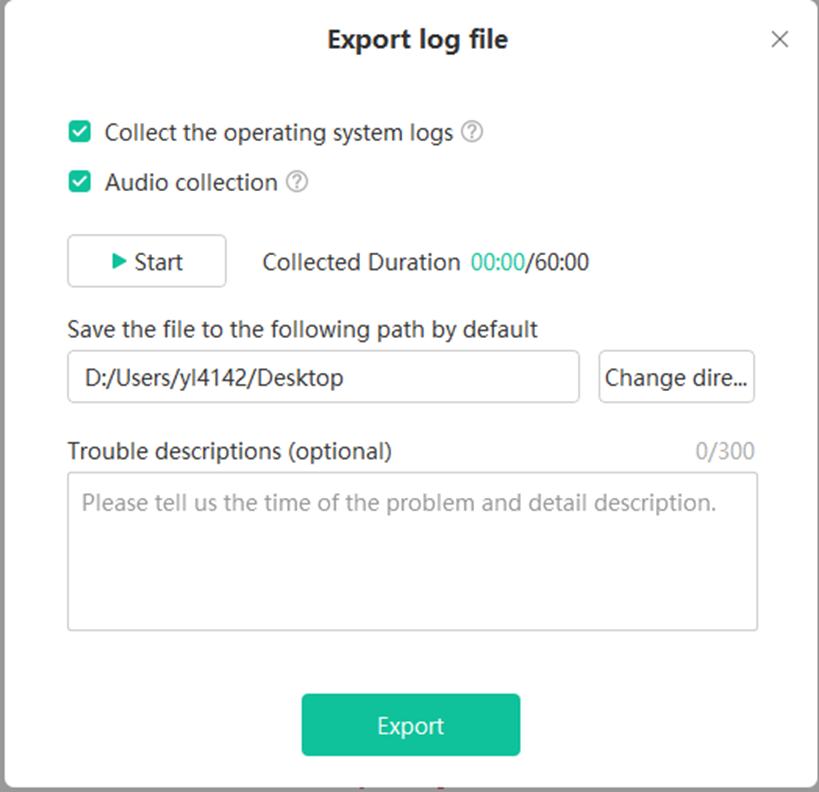
3. Now reproduce the audio issue again. After the audio issue is reproduced, please click Stop to export the diagnostic files (audio and log files).
Note: The exported file is in a .zip file format.
4. Once you have the ZIP file please Email it to support@firelinecommunications.com including a description of what occurred and the time it occurred.
Last Updated on July 2, 2025